


After activating FlightCheck, the first time you start the application, you will see a Scripts Installer Window. The Window will list all versions of InDesign from CS6 and higher it finds on your computer that are located in your Applications Folder. Next to each version of InDesign listed is an Install Button. Clicking on the Install Button will install the FlightCheck scripts into that version of InDesign.
Before installing any of the FlightCheck Scripts, please make sure that version of InDesign is not running, otherwise you will need to restart InDesign to access the scripts.
The Send to FlightCheck Automator Workflow Script will also be listed. This Script enables the set up of Hot Folders. When set up, any files added to the Hot Folders will be opened in FlightCheck.
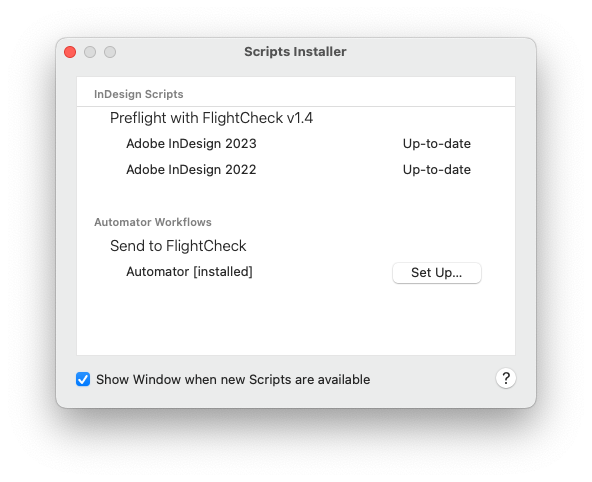
At the lower left of the Scripts Installer Window is a checkbox that lets you hide the Window if there are scripts still available for install on relaunch of FlightCheck. If you uncheck Launch when scripts available, you can always access this window anytime FlightCheck is open by going to the Tools Menu and selecting Script Installer.

Post your comment on this topic.