* The previews you see on screen in FlightCheck for InDesign and QXP files are internally generated by FlightCheck. While Markzware strives to produce the most accurate preview possible, there may be cases, where the on screen preview does not match the original document. If you encounter a case where this causes you issues in your workflow, please create a Trouble Ticket. Please don’t forget to upload the file or files that you see the issue with so that Markzware Engineers can attempt to improve the accuracy of the preview.
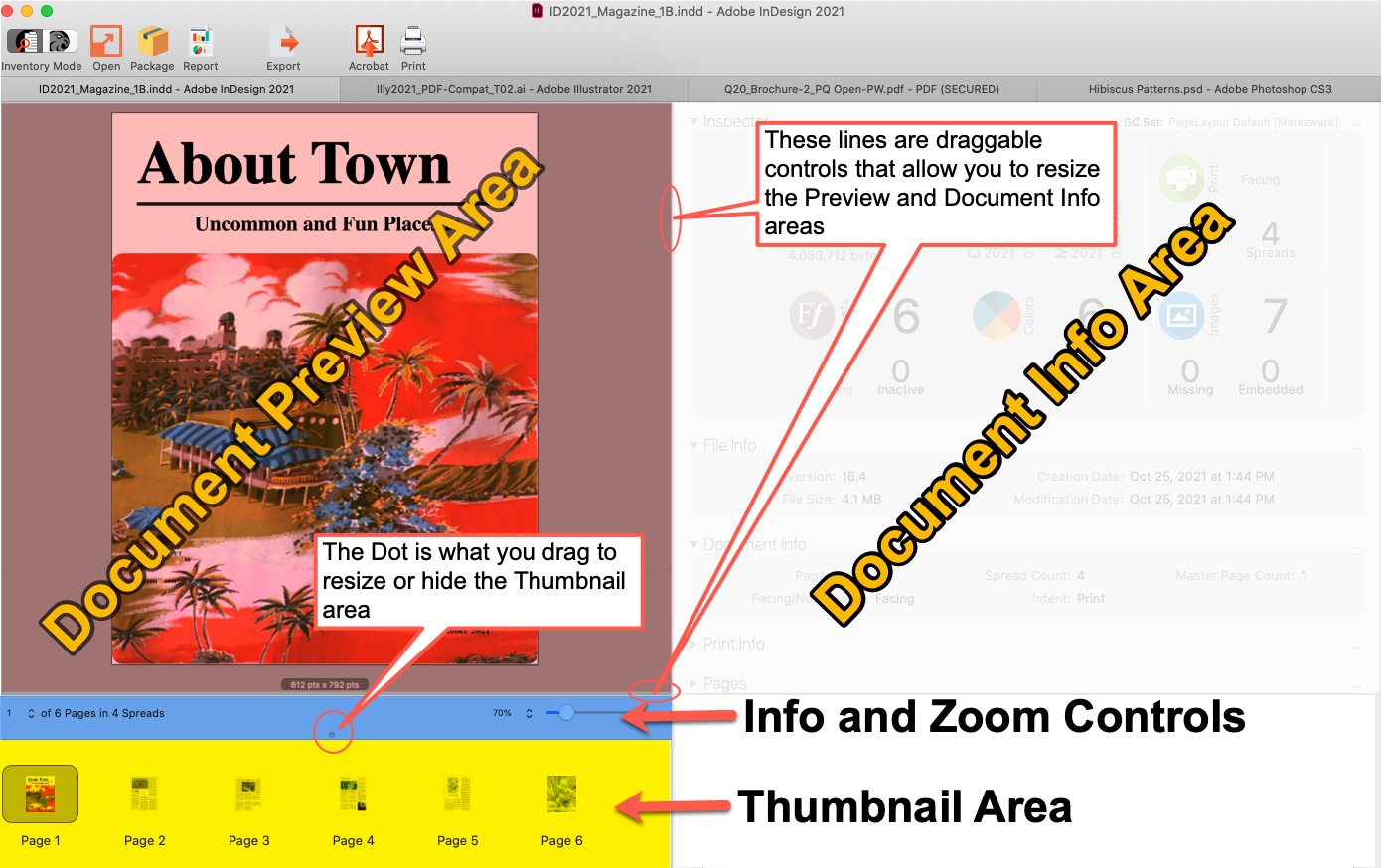
*Both the Inventory and Preflight Modes share a common Preview of your file. By Default the Preview shows to the left of the Inventory or Preflight information.
The Preview area has the following features
- It shows a preview of your file so you can get a rough idea of what your file looks like
- Below a page, FlightCheck shows the dimensions of the page
- Shows the number of Pages and Spreads for the document
- Allows you to zoom in or out to inspect your document.
- Thumbnail views- If you drag on the small dot, this will open up the Thumbnail area. This area will show a thumbnail of each page in your document. By clicking on a thumbnail, you can directly preview that page without cycling through each page in a linear fashion.
*You can adjust where the Preview shows. By Default it shows to the Left of the Inventory or Preflight information. Using Command Keys you can adjust whether the Preview shows to the left, right, above or below the Inventory or Preflight information.
Command-Right-Arrow – Places the Preview to the LEFT of the Inventory or Preflight information
Command-Left-Arrow – Places the Preview to the RIGHT of the Inventory or Preflight information
Command-Down-Arrow – Places the Preview ABOVE of the Inventory or Preflight information
Command-Up-Arrow – Places the Preview BELOW of the Inventory or Preflight information
*If you place the Preview ABOVE or BELOW the Inventory or Preflight information you most likely will want to adjust how things display on screen by using the drag bars for the different sections of the FlightCheck main window.
*If you are viewing a Quark document that contains more than one Layout, FlightCheck will display an area where you can select which Layout you would like to view.
*You can adjust how fast you move between pages in your Preview by setting the Animation Speed Setting under FlightCheck’s General Preferences area




Post your comment on this topic.