



Following are the steps to Deactivate IDMarkz SE. These are required if you are going to move IDMarkz SE from one computer to another or retire a computer and at a later date install IDMarkz SE onto another computer or a new computer.
1. First deactivate IDMarkz SE on your current computer
2. Now you can install IDMarkz SE on your new computer
Deactivation Process
- Go to theIDMarkz SE Help Menu and select About

- This will bring up the About IDMarkz SE window. Click on the Deactivate button

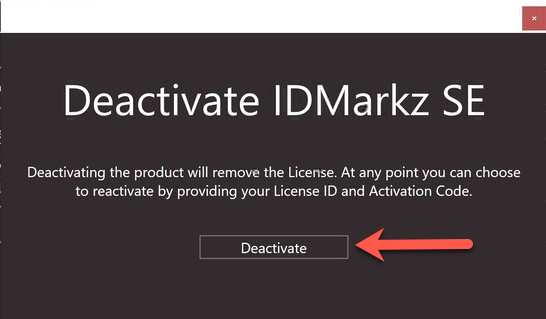
- This will bring up a confirmation window asking if you would really like to Deactivate IDMarkz SE. If you do, then click on the *Deactivate button. If you wish to cancel and not deactivate IDMarkz SE, click on the red close button in the upper right corner.

- Once you Deactivate IDMarkz SE, you will see the initial Activation Screen. Close this window by clicking on the red close button in the upper right.



Now you are ready to Uninstall IDMarkz SE
- Open up your Control Panel for Microsoft Windows. Under the Programs area, click on Uninstall a program

- Navigate down the list until you find an entry for IDMarkz SE

- You can right-click on the IDMarkz SE entry and select Uninstall from the popup menu or you can single-click on the IDMarkz SE entry and then click on the word Uninstall.

- Either of these methods will bring up a window asking if you are sure you want to Uninstall IDMarkz SE. Click Yes to continue uninstalling IDMarkz SE.

- You will see a window telling you Windows is preparing to remove IDMarkz SE

- The Uninstaller will do “some stuff”

- When the Uninstaller completes it will automatically close and you will see the Control Panel-> Uninstall window. Close this window.
- You can now install IDMarkz SE on your new computer system.



Post your comment on this topic.