IDMarkz SE Installation - IDMarkz User Guide - se
  1. Download .msi file
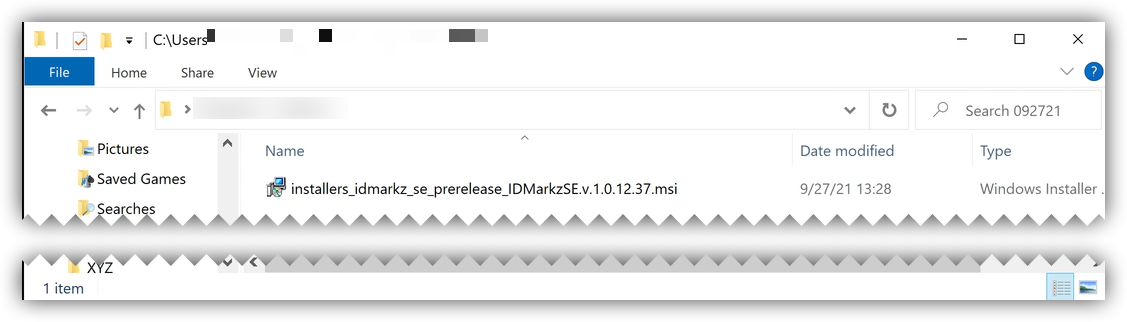
  2. Double-click on .msi file
    Double Click on the .msi installer

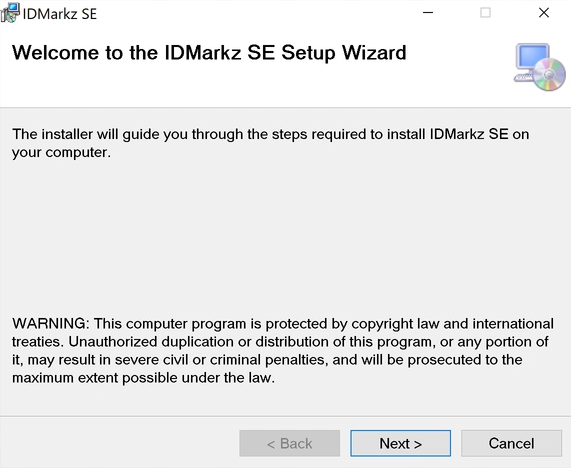
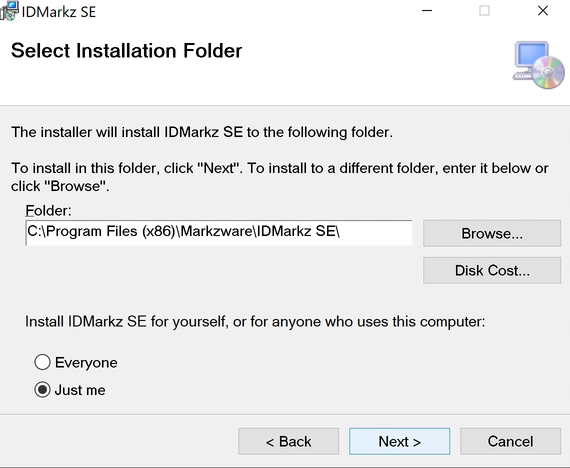
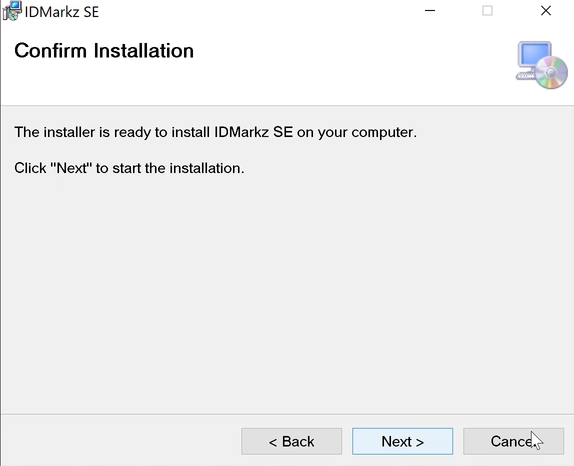
  3. Follow thru the install screens
    IDMarkz SE Install Screen 2


    IDMarkz SE Install Screen 3


    IDMarkz SE Install Screen 4

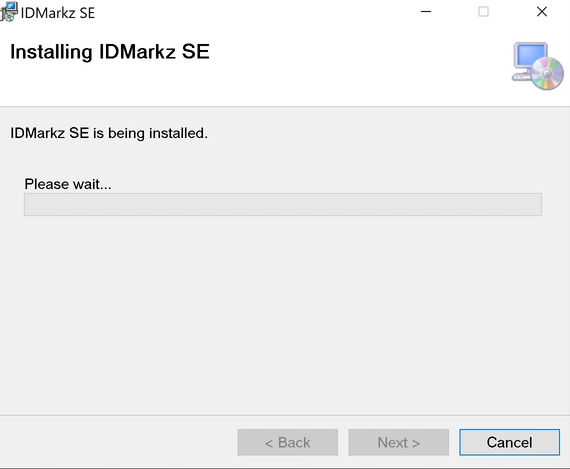
  4. The Installer may take a minute or two to set things up.
    IDMarkz SE Install Screen 5

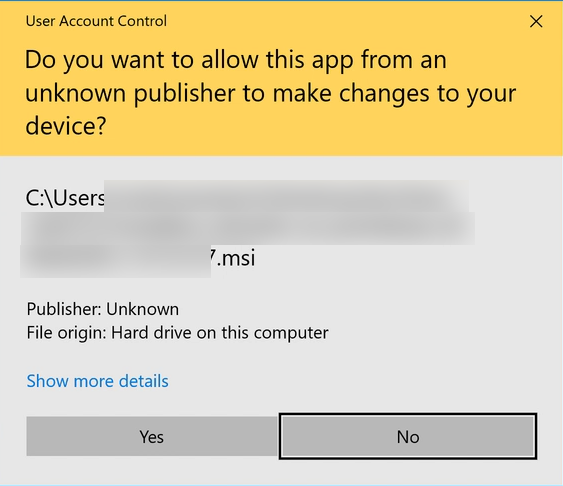
  5. You may see a UAC (User Access Control) window asking if it is OK to make changes to your device. Click on Yes
    IDMarkz SE Install UAC Screen

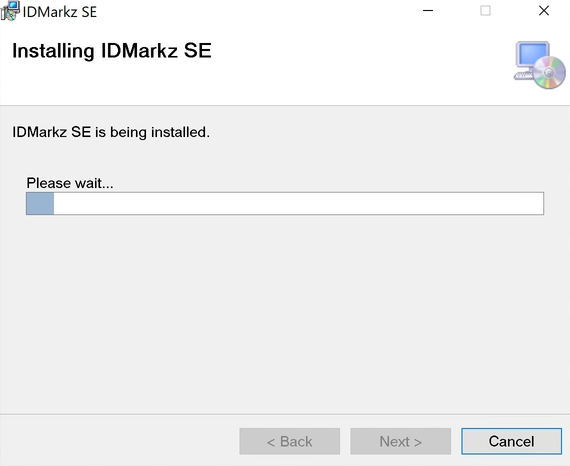
  6. After the User Access Screen closes, the Installer begins installing IDMarkz SE
    IDMarkz SE Installer Running


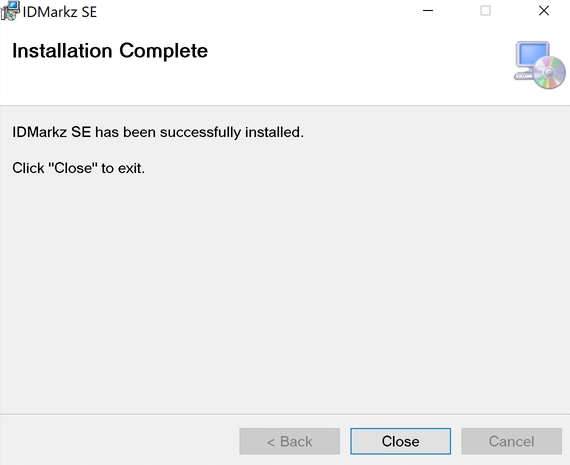
    Once Installation has completed, click on the Close button to finish up the installation
    IDMarkz SE Successful Install

Feedback

Was this helpful?

Yes No
You indicated this topic was not helpful to you ...
Could you please leave a comment telling us why? Thank you!
Thanks for your feedback.

Post your comment on this topic.

Please do not use this for support questions.
Click this link to contact Markzware Tech Support

Post Comment

Stay Connected!

SUBSCRIBE
Close