How to Detect Generative AI in Photoshop Files with FlightCheck
Have you ever wondered whether a Photoshop design contains generative AI elements? With Markzware’s FlightCheck, you can inspect native Photoshop files and detect supported Adobe Firefly indicators and any associated prompt information retained in the file, image-resolution problems, color issues, fonts, and other production risks—without first opening the file in Photoshop.
Video Timeline
00:00 – Introduction: detect generative AI in a Photoshop file
00:19 – FlightCheck and online preflight overview
00:43 – Drag and drop a PSD file into FlightCheck
00:57 – Review the preview and file inventory
01:28 – Switch from Inventory to Preflight mode
01:42 – Find resolution, color and generative-AI warnings
01:51 – Locate the AI-generated image and Firefly prompt
02:25 – Open the PSD in Photoshop from FlightCheck
02:43 – Edit and recheck the modified file
03:08 – Bonus: import the PSD into Canva with DesignMarkz
03:53 – Edit the converted Photoshop design in Canva
04:05 – FlightCheck offer and conclusion
FlightCheck: Preflighting Made Simple
FlightCheck is Markzware’s stand-alone preflighting application for creative, prepress, and print-production professionals. Dragging a Photoshop file into FlightCheck provides a detailed preview and file inventory, including:
- Images and their resolutions
- Fonts used in the document
- Extracted text content
- Colors and color spaces
- Document effects and other file elements
- Potential production and file errors
How to Detect Generative AI in a Photoshop File
- Open FlightCheck.
- Drag and drop the Photoshop
.PSD file into FlightCheck. - Review the document preview and file inventory.
- Open the preflight results to determine whether generative AI content was detected.
- Review any available Adobe Firefly information, including associated prompt information when that data remains available in the file.
- Check for related production concerns, such as low-resolution images, RGB colors, missing fonts, and file errors.
- If corrections are necessary, open the PSD in Photoshop, make the changes, and preflight the file again.
New to FlightCheck? Start with the FlightCheck Quick Start tutorial to learn how to open files, review previews, and begin preflighting.
Detect Adobe Firefly Content and Prompts
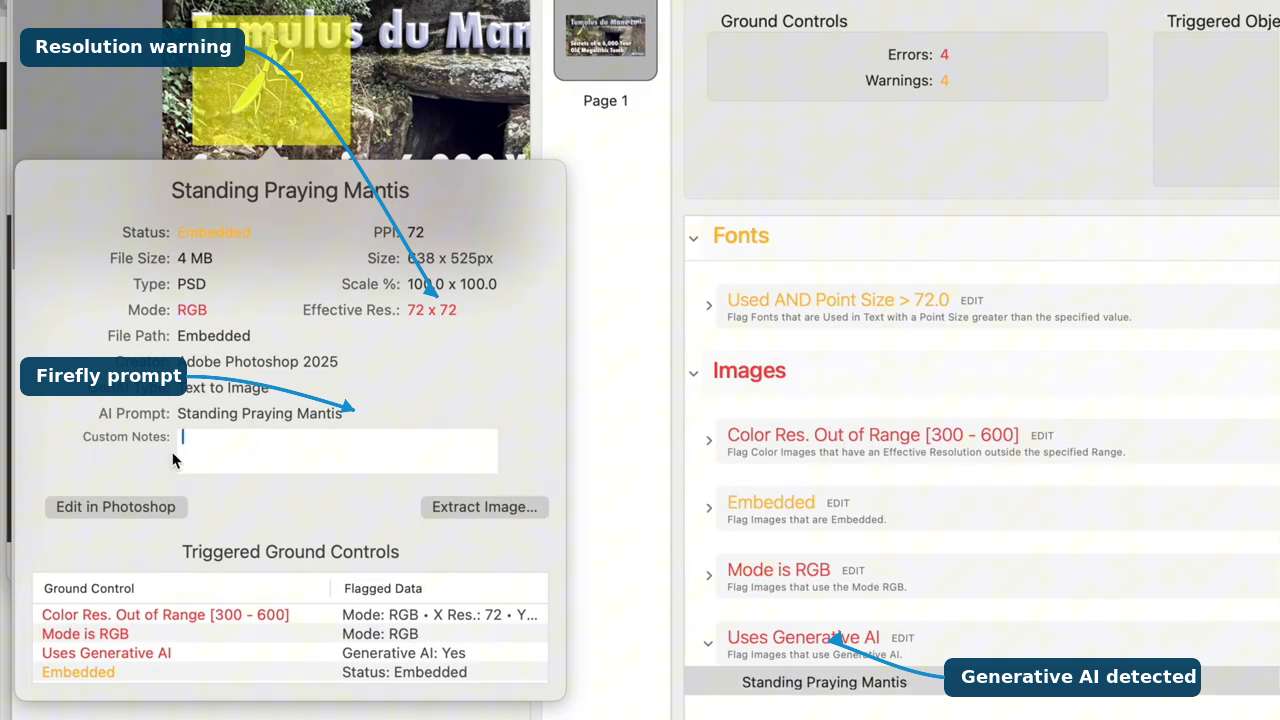
In the video demonstration, FlightCheck identifies an Adobe Firefly-generated image inside a native Photoshop file. It reports the use of generative AI and displays associated prompt information when that data remains available in the file.
FlightCheck also flags an image-resolution problem associated with the AI-generated element, allowing the designer or production professional to address the issue before the file is delivered or printed.
FlightCheck can also detect generative AI images in Adobe InDesign documents, helping users locate flagged AI-generated content within their layouts.
More Than Generative AI Detection
FlightCheck also helps identify other common Photoshop production problems, including:
- Low-resolution images
- RGB versus CMYK color issues
- Missing or unavailable fonts
- Embedded images
- File and document errors
- Other elements that could affect output quality
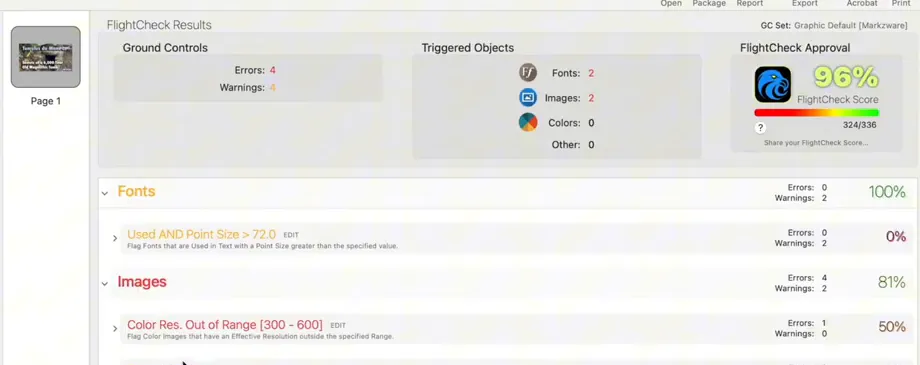
FlightCheck reports font and image issues, including an out-of-range effective-resolution warning, and provides an overall preflight score.
Important: Generative-AI detection depends on supported metadata and document information remaining in the source file. If a file has been flattened, exported, resaved or stripped of metadata, AI use may not be detectable. A clean result is not proof that no generative AI was used.
Photoshop AI-Detection and Preflight Checks Compared
| Check | What FlightCheck reports | What it can help reveal | Important limitation | Recommended follow-up |
|---|---|---|---|---|
| Generative AI / Adobe Firefly | Supported generative-AI indicators and any available prompt or document metadata | An element may have been generated or modified with supported AI tooling | Detection depends on the relevant metadata or document information remaining in the file. Flattening, exporting, resaving or removing metadata can limit detection. | Review provenance, usage rights and organizational policy before approval. |
| Image resolution | Resolution data and profile-based preflight warnings | An image may be below the resolution required for the intended output | The correct threshold depends on output method, final size and viewing distance. | Replace, resample or approve for the intended use, then preflight again. |
| Color space | RGB, CMYK and other available color information | A possible mismatch with a print-production workflow | RGB is not automatically an error; it may be appropriate for digital output and some print workflows. | Follow the destination profile and job specifications before converting color. |
| Fonts | Fonts used and their available status | Missing or unavailable fonts and possible substitution risk | Outlined or rasterized text may no longer be reported as live type. | Install or substitute fonts, check text flow and rerun the preflight check. |
| Images and assets | Images and other available file information | Embedded, missing or otherwise problematic image information | The detail available depends on how the PSD and its assets were constructed and stored. | Inspect, relink or replace the source asset as appropriate. |
| Other file warnings | Additional checks enabled in the selected FlightCheck profile | Production risks that may affect delivery or output | A warning is not always a defect; the Ground Control profile and job requirements matter. | Evaluate the warning against the job specifications, correct it if needed and recheck the file. |
After reviewing the results, you can open the PSD directly in Photoshop, correct the reported problems, and run the file through FlightCheck again to verify your changes. For a broader look at file inspection, reporting, packaging, and production workflows, learn how FlightCheck helps create print-ready and production-ready documents.
Bonus: Convert PSD Files into Canva
Want to repurpose your Photoshop designs in Canva? DesignMarkz converts PSD files into editable Canva designs, helping you reuse text, images and layouts without rebuilding them from scratch.
Inspect Your Photoshop Files with FlightCheck 🎉
Check Photoshop files for generative AI metadata, image-resolution problems, color issues, fonts and other production risks before delivery. Explore FlightCheck and download the free trial.
📧 Email sales@markzware.com for your coupon code today.
Frequently Asked Questions
What does FlightCheck detect in a Photoshop PSD file?
FlightCheck inspects native Photoshop files for supported generative-AI indicators and available Adobe Firefly prompt or document metadata. It can also report production information such as image resolution, color spaces, fonts, images and other potential file problems.
Do I need Adobe Photoshop installed to inspect a PSD with FlightCheck?
No. FlightCheck can preview, inventory and preflight a supported PSD without requiring Photoshop. Photoshop is only needed if you want to open and edit the original document after reviewing the results.
Can FlightCheck always determine whether generative AI was used?
No. Generative-AI detection depends on supported indicators and metadata remaining in the source file. A file that has been flattened, exported, resaved or stripped of metadata may no longer contain enough information to identify its AI history.
Can FlightCheck display the prompt used to generate an image?
FlightCheck can display prompt information when that information is present in supported metadata or document data. If the prompt was removed or was never stored in the file, it cannot be recovered from the finished pixels alone.
What other Photoshop problems can FlightCheck identify?
Depending on the selected Ground Control profile and the information available in the file, FlightCheck can report low-resolution images, RGB or CMYK color information, unavailable fonts, embedded images, document errors and other potential production risks.
Can FlightCheck detect generative-AI content in Adobe InDesign files?
FlightCheck can also report supported generative-AI indicators when preflighting compatible InDesign documents and their available image information. As with Photoshop files, the results depend on the document structure and metadata that remain accessible.
What should I do when FlightCheck flags generative-AI content?
Review the identified element, any available prompt or provenance information, its resolution and color settings, and your organization’s licensing or content policies. Make any necessary corrections and run the document through FlightCheck again.
Does a generative-AI warning determine copyright ownership or licensing?
No. The warning identifies available technical indicators; it does not establish copyright ownership, licensing rights or permission to use the content. Those questions should be reviewed separately.
Updated on: August 22, 2026