
How to install PDF2DTP for QuarkXPress on Windows:
Here are the steps for the PDF2DTP for QuarkXPress installation on Windows in order to be able to convert a PDF file to QuarkXPress:
When you download PDF2DTP QuarkXPress XTension by Markzware you will receive a ZIP file.
Double-click on the ZIP file to decompress it.
ZIP File for PDF2DTP for QuarkXPress
(Convert PDF File to QXP)

If you receive a check sum error message when trying to decompress the PDF2DTP ZIP file, use Windows Explorer to decompress the file.
PDF2DTP for QuarkXPress Installer and Manual
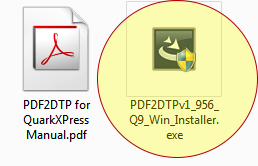
In the PDF2DTP Installer folder, you will find the PDF2DTP Installer for QuarkXPress.
Double-click on the Installer .exe file to begin the Installation process.
PDF2DTP for QuarkXPress Permission or Password
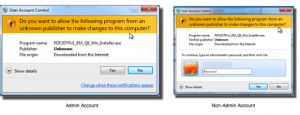
When you first run the PDF2DTP for QuarkXPress installer, you may see a User Account Control window.
This window will differ depending on whether you are logged into an Admin or a Non-Admin account.
PDF2DTP for QuarkXPress Welcome Install Screen
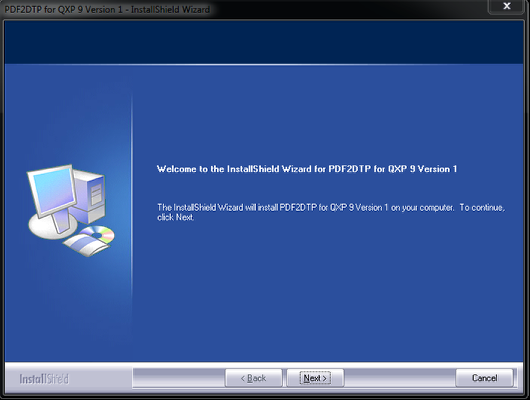
Click on the Next button to continue with the install.
PDF2DTP for QuarkXPress User/Company Name
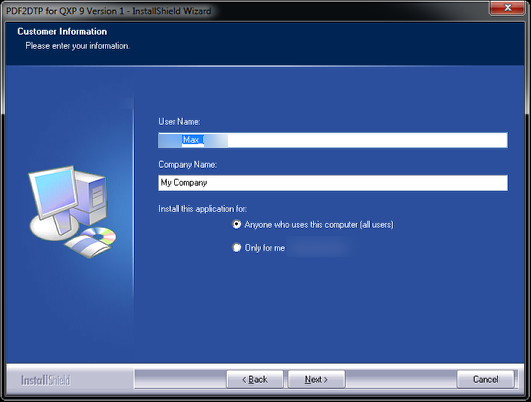
User Name:
Your User Name will automatically be filled in based on the name of your computer or account.
Company Name:
For Company Name, type in the name of your Company.
If you do not work for a company, you can leave the “My Company” default.
Install this application for:
By default, “Anyone who uses this computer (all users)” is selected.
Unless you want to restrict PDF2DTP for QuarkXPress to just your account, leave the default value for all users enabled.
PDF2DTP for QuarkXPress Setup Type

Unless instructed by Markzware Tech Support, you should select the Complete install type.
PDF2DTP for QuarkXPress Review

The installer will present a Review window that will show you where the PDF2DTP for QuarkXPress XTension will be installed.
PDF2DTP for QuarkXPress Installation Complete

Click the Finish button to close the PDF2DTP for QuarkXPress Installer.
After you have installed PDF2DTP for QuarkXPress, start up QuarkXPress.
PDF2DTP for QuarkXPress Activation

The very first time you start up QuarkXPress after installing PDF2DTP for QuarkXPress, the XTension will attempt to contact Markzware’s License Server and activate your product. This should be a fairly transparent process. If the XTension is able to contact the License Server, then you will be activated.
Click on the Close button to dismiss this screen and start using PDF2DTP for QuarkXPress. At this time, you should also have the PDF2DTP for QuarkXPress Registration Screen visible as well. Please fill out the Registration form before starting to use PDF2DTP for QuarkXPress.
Should you have any issues, use the links on the Activation Complete screen to contact Markzware Tech Support.
PDF2DTP for QuarkXPress 9, the QuarkXPress XTension to convert PDF to QuarkXPress, is available online from Markzware via the PDF2DTP page.
PDF2DTP for QuarkXPress Installation on Windows – Video on how to install PDF2DTP for QuarkXPress for Windows so that you can convert PDF to QuarkXPress!