Convert Canva Designs to Layout App Formats
with Canva PDF to DTP File Converter,
ConvertMarkz (Markzware White Paper)
Canva’s Export options do not include Affinity Publisher, Adobe InDesign, or QuarkXPress. ConvertMarkz can help. This white paper by Markzware analyzes how to convert a Canva design as PDF to Affinity Publisher, Adobe InDesign, and QuarkXPress, to simplify your workflow and improve your productivity:
1. Executive Summary
Overview
Lack of Canva Export option choices for professional desktop publishing app formats can be problematic for Canva users. The main issues that can result regard editability loss, font/asset incompatibilities, compromised layout structure, and inability to convert to a layout app format (as may be required in the current workflow). A Canva App by Markzware can solve this basic problem for Canva designers.
Main Problem
Canva’s platform allows users to easily create their own designs; however, file conversion from these Canva designs to layout program formats, such as Adobe InDesign, Affinity Publisher, and QuarkXPress, can create challenges for designers.
Layout applications are notorious for causing file conversion difficulties, due to specific differences between particular apps. These differences can cause many problems for users layout applications for desktop publishing.

Solution
To meet this challenge, Canva designers can use a quality file conversion solution that helps to transfer Canva content to a format that allows users to edit design elements and layout structure within desktop publishing applications. ConvertMarkz is such a solution.
Key Benefits of ConvertMarkz
• Is a Canva App (by leading conversion app developer, Markzware) in the Canva.com “Apps” Marketplace
• Helps Canva Users to Export Canva Design PDFs for Use within Layout Apps for Desktop Publishing
• Allows Canva Designers to Open Their Content in Affinity Publisher, Adobe InDesign, & QuarkXPress
2. Introduction
Issue Summary
The primary pain point of file conversion from Canva design to professional layout app formats is that Canva’s Export Options list does not yet include direct options for major layout app formats. While Canva’s interface is simple to use, it is limited in conversion to these complex applications.(1)
Background

Markzware, Inc., Developer of ConvertMarkz & Other Layout Design Solutions
With a rich legacy spanning over three decades, Markzware brings unparalleled expertise in both print preflighting and file conversion for PDF and Desktop Publishing (DTP) files. Markzware has served content document production workflows, since the 1980s, continually enhancing its experience in developing solutions for this industry segment.
Markzware, Inc. is a privately-held company based in Dayton, Nevada, that develops stand-alone solutions for the printing, publishing, and graphic arts industries. Markzware B.V. is the European operation located in The Netherlands.
Markzware specializes in print quality control, file previewing, data conversion, and archiving. Markzware products support workflows for PDF and native files created in Adobe InDesign, Illustrator, QuarkXPress, Affinity Publisher, and other applications.
The ease of use and quality of Markzware products are key design factors that help to streamline error-free document production. Multiple employees of Markzware have worked with and worked at businesses with content document production workflows, including for graphic arts, printing, and publishing.
3. Challenge
Discrepancies between Canva export formats and professional layout apps can cause additional effort and leave room for errors. The following issues can frustrate Canva designers who are under pressure to produce art concepts, but who must edit within the workflow’s required layout app.(1)
Canva to Layout App Conversion Problems
A truly perfect conversion from Canva designs to professional layout app formats can be elusive and can lead to problems, such as:
• Editability Loss
• Font/Asset Incompatibilities
• Compromised Layout Structure
• Inability to Convert to a Layout App Format
Editability Loss: After export from Canva, designs may be flattened images or PDFs, lacking editability of specific elements, when converted to layout app formats. This may cause designers to have to re-create the design from scratch.(1)
Font/Asset Incompatibilities: Canva’s custom fonts and elements may cause discrepancies if the font or element is not supported by the destination application.(1)
Compromised Layout Structure: The simplicity involved in Canva’s interface may inadvertently cause design element or layout structure loss after processing with some conversion tools. This may require designers to re-build the entire design.(1)
Inability to Convert to a Layout App Format: The Canva platform supports export to JPG, PNG, PDF, and such, but not for editable files to native Affinity Publisher, Adobe InDesign, Illustrator, Photoshop, QuarkXPress, and the like. So, file format compatibility is a challenge.(1)
4. Solution
Current State of the Art & Relevant Technologies
The current state of the art regarding exporting Canva designs to layout application formats has improved in versatility and format compatibility. Some Canva design conversion solutions can assist in bridging the gap. Capabilities include:
Canva Export Options: Canva offers export formats, including JPG, PNG, PDF, MP4, and GIF, which can be useful for various purposes. Unfortunately, these options, on their own, do not directly convert to editable layout app formats.(2)

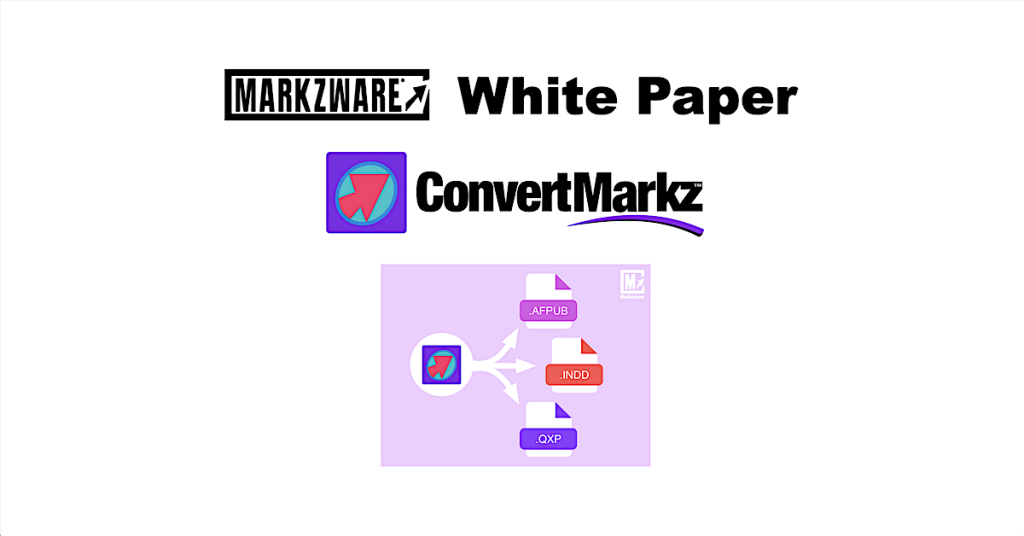
ConvertMarkz: A Canva app, ConvertMarkz by Markzware, allows users to export Canva designs to various desktop publishing formats:
• Affinity Publisher (.afpub)
• Adobe InDesign (.indd)
• QuarkXPress (.qxp)
• IDML (InDesign Markup Language)
ConvertMarkz preserves elements like text, images, and layout, making the exported files editable in the target applications.(3)
Photoshop: Adobe Photoshop users can select PDF as their Canva design Export option, open and save the PDF as PSD via Photopea, and open it in Photoshop for editing. Some elements may need to be adjusted.(4)
Reverse Workflow: Canva supports PDF file import that preserves layers and bridges professional design solutions to Canva. Users can create designs in a professional layout app, export it as a layered PDF, then import it into Canva for sharing or editing.(4)
Limitations: These methods can help to address compatibility, but:
• Complex designs might require some manual edits.
• Specific effects, custom features, or other elements might not convert well between platforms.
• Large files or multi-page designs may result in a compromised layout.
The ability to export Canva designs to layout application formats has progressed to the point where file conversion solutions and workarounds can translate Canva designs to editable layout app formats. Users of these options should expect to make minor touch-ups after converting between format types.
5. Solution Details
Benefits of using ConvertMarkz include that it saves time and money, while allowing users to preserve intellectual property with this reliable solution for desktop publishing file conversion. It provides an easy-to-use solution to convert Canva PDF files, which is a significant time-saver for repurposing content. It also eliminates the need to manually rebuild Canva designs in Adobe InDesign, Affinity Publisher, and QuarkXPress.

Features/Capabilities
Through the flexible ConvertMarkz app in Canva’s app marketplace, you can:
• Convert Canva PDFs to DTP formats and image formats.
• Share, collaborate, and edit your designs with ease.
• Connect to Markzware’s MarkzPortal, to extract stylized text and images for use in your designs, plus import previews of layouts previously exported to MarkzPortal.
ConvertMarkz Competition Comparison Chart
There are a few file tools that may assist in the conversion of Canva designs to layout application formats. Here is a chart that compares ConvertMarkz with its top four potential competitors:

Competition Comparison Analysis
ConvertMarkz: This Canva app allows users to convert their Canva designs to desktop publishing formats compatible with programs like Adobe InDesign and Affinity Publisher.(5) This direct integration within Canva’s design platform can streamline file conversion.
SVG export: Paid users of Canva’s platform can export their designs as SVG files, a vector format that certain layout applications can import for editing.(6)
Third-party converters: Canva does not officially support 3rd-party converters, platforms like Magicul provide conversion of some Canva export formats to design formats.(6)
Manual re-build: Some Canva designers choose to re-create, from square one, their Canva designs in layout apps. They might take screenshots or export images, to use as references for the rebuild, which is time-consuming but offers some control of page layout.
PDF export: Canva allows users to export their Canva designs as PDF files. This may retain the look of the design, after import into layout applications, with limited editability.
Based on the user’s budget and purposes, each of the solutions mentioned in this chart may offer their own capabilities. Compared to these potential Canva design conversion tools, ConvertMarkz is a convenient, efficient, and specialized tool to convert Canva PDFs to layout app formats.
Sample ConvertMarkz Reviews

There’s gotta be a way to get this Canva PDF file translated into an InDesign design file. This is a miracle! … Markzware … can convert Canva to InDesign! … Relief and gratitude abounds … saving us time and trouble and a massive amount of energy … BRAVO!
– Pamela Sackett, Principal Artist/Founder & book publisher, Emotion Literacy Advocates

The applications Markzware provides designers of all levels are amazing time savers. When it comes to taking digital files and making them usable in older versions, or taking a file to your program of choice for editing there is no equal.
– Mark Lamhut, President, Paul-Mark Printing
Mac System Requirements
macOS system requirements for ConvertMarkz include:
• 15 Sequoia
• 14 Sonoma
• 13 Ventura
• 12 Monterey
• 11 Big Sur
• 10.15 Catalina
• 10.14 Mojave
• 10.13 High Sierra
Hardware
• Mac Pro, iMac, iMac Pro, MacBook, MacBook Pro, MacBook Air, Mac Mini
• 4 GB of RAM
• 1024 x 768 display or better
• Internet connection to activate and register
Integration Capabilities
It is simple to integrate ConvertMarkz into a Canva design production workflow, as it supports multiple desktop publishing formats. This Canva App for file conversion offers seamless, precise .INDD, .AFPUB, and .QXP file conversion.
Security Features
ConvertMarkz operates online between the Canva platform and MarkzPortal by Markzware. Both Canva and Markzware use secure servers to ensure that customer accounts are protected. Neither shares customer account information, customer contact information, or customer documents outside of their platforms.
Scalability and Performance Metrics
ConvertMarkz can transport Canva designs to MarkzPortal, a SaaS solution for document conversion. All MarkzPortal Plans include free unlimited previews. Account holders can choose either one of two Plan Types: for PDF & Illustrator files or for PDF, Illustrator, InDesign, and QuarkXPress files. The Adobe Illustrator files must be saved with PDF compatibility enabled.
The Billing Cycle can be Monthly or Yearly. The Yearly Billing Cycle saves users 40% of the Monthly Billing Cycle cost.
The Basic Plan allows 10 documents and 100 pages a month or 120 documents and 1,200 pages a year.
The Standard Plan allows 50 documents and 500 pages a month or 600 documents and 6,000 pages a year.
The Premium Plan allows 100 documents and 1,000 pages a month or 1,200 documents and 12,000 pages a year.
The Custom Plan allows 250 documents and 2,500 pages a month or 3,000 documents and 30,000 pages a year.
6. Business Benefits
Return on investment (ROI)
ConvertMarkz is a cutting-edge online solution by Markzware for Canva PDF file conversion. Creatives, graphic artists, prepress professionals, printers, graphic designers, publishers, and the like can elevate their digital experience, by accessing the content in their documents for many purposes, with ConvertMarkz, which is integrated with Markzware’s online file conversion solution, MarkzPortal.
Businesses can save the costs of Creative Cloud and other app subscriptions, since ConvertMarkz does not require the user to purchase or install any applications. Businesses can also potentially expand their market by millions of dollars, by using this valuable solution to extract content for database and/or artificial intelligence (AI) purposes.
ConvertMarkz provides added value for creatives, graphic designers, and layout production specialists seeking an easy-to-use file conversion tool for onboarding document production jobs. This affordable system allows more flexible content creation for communication arts and other document projects.
Canva document creators can turn their content into ROI-producing documents. Markzware’s ConvertMarkz empowers users to convert content for books, brochures, catalogs, Ebooks, flipbooks, magazines, newsletters, product packaging, social media posts, and more.
Usability and User Experience
ConvertMarkz provides an easy-to-use, online interface that allows users to export their Canva design as PDF for converting into other formats. MarkzPortal users can Drag-&-Drop their Canva PDF file onto the main MarkzPortal webpage. The portal automatically generates a preview of the document and offers several Export Format options, including for professional layout app usage.
Adherence to Industry Standards
Markzware has decades of experience in the development of file conversion solutions, so resulting conversions typically meet or surpass industry standards. Due to the nature of differences between file formats, established industry members have come to expect a possible need for touch-ups in converted files.
Speed of Implementation
ConvertMarkz takes only moments to implement, since it is available online via Canva and allows account creators to download the app from the “Apps” section at Canva.com. ConvertMarkz is designed to make complex tasks quick and easy. Preview your document, then open the file in Affinity Publisher, QuarkXPress, or Adobe InDesign.
Canva users can get a MarkzPortal account and simply drag-&-drop the file that they want to convert onto the main MarkzPortal page interface. Users can select an Export Format and Download immediately after the file is processed.
Depending upon the file type, contents, and size of the file, processing may be instant or only as much time as it takes to have a cup of coffee. There is no need to install applications or plug-ins, so MarkzPortal also saves the time that it would have taken to accomplish those types of installations. See examples of the processing speed of MarkzPortal, here.
Potential Impact on Productivity and Efficiency
File conversions processed via ConvertMarkz and MarkzPortal can dramatically increase productivity and efficiency over manual file conversion. The portal’s processing speed allows more documents to be produced than could be produced by rebuilding each entire document by hand. Users have mentioned hours, days, and weeks of time saved on recreating the layout, formatting, editing, images, colors, etc.
Quick Start
The ConvertMarkz Quick Start is easily accomplished. See this article (with a video) for the steps and more information.
7. Summary
Top Benefits of ConvertMarkz
• Is designed for and directly integrated with Canva
• Converts to multiple layout formats
• Maintains editability of design elements
Experience the ConvertMarkz Journey
ConvertMarkz is a free app available in the Canva Apps marketplace, here. Get this file conversion app on canva.com and convert your Canva designs, today. You can check out the ConvertMarkz Tutorials here. Learn more, by experiencing the ConvertMarkz Journey.
We hope that our comprehensive white paper helped to provide you with more information, so that you can make a more informed decision regarding your choice of solution.
Markzware ConvertMarkz app in the Canva marketplace allows designers to preview, convert, and open Canva design files in Adobe InDesign, Affinity Publisher, and QuarkXPress layout applications for desktop publishing. ConvertMarkz gives you a head-start on Canva file conversion. Easily convert Canva designs to formats you can share, with ConvertMarkz. Collaborate and edit your designs in Affinity Publisher, Adobe InDesign, & QuarkXPress with ease.

Share This White Paper with Your Contacts
We hope you found our white paper on converting Canva PDFs to layout application formats to be helpful. If you think your colleagues or industry contacts would benefit from this information, we’d be grateful if you could forward it to them or share it on social media. Thank you for your support in helping us spread valuable insights within our industry. Here is the link to share:
https://markzware.com/convertmarkz/convert-canva-designs-to-layout-app-formats-canva-pdf-to-dtp-file-converter-convertmarkz-markzware-white-paper/

PDF & DTP Solutions for Canva Users, Layout App Users, & Other Designers
Markzware offers software for creatives and other content creators to preview, preflight, export, and convert PDF and desktop publishing documents. Become a Markzware Reseller or a Markzware Affiliate.

To get the latest news about Markzware products and print industry-related news, join our mailing list. You can also follow Markzware on X, LinkedIn, YouTube, Facebook, and other social media websites.
Sources
1. “Pain points for Canva” by Dry-Grape8135, Reddit community member, canva discussion, Reddit, June 2024, viewed September 12, 2024, https://www.reddit.com/r/canva/comments/1dj8vc9/pain_points_for_canva/
2. “How-to guides: Customize the export settings” by Canva Team, Canva, n.d. viewed September 13, 2024, https://www.canva.dev/docs/print-partnerships/how-to-guides/customize-export-settings/
3. “How To Export Canva Files as Affinity Publisher, Adobe InDesign, QuarkXPress & More: ConvertMarkz” by Markzware Team Member, Markzware, Inc., April 5, 2024, https://markzware.com/convertmarkz/convertmarkz-tutorials/how-to-export-canva-files-adobe-indesign-affinity-publisher-quarkxpress-convertmarkz/
4. “How to Convert Canva Templates to PSD Files and PSD to Canva for Free” by Heather Farris, Heather Farris Co., February 4, 2021, https://heatherfarris.com/convert-canva-templates-to-psd-files/
5. “ConvertMarkz – Canva Apps” by Markzware, Inc., Canva, n.d., viewed September 12, 2024, https://www.canva.com/apps/AAFu0NDeo60/convertmarkz
6. “How to Convert Canva to PPT – A Step-by-Step Guide” by Kevin Goedecke, Magicul, June 2, 2023, https://magicul.io/blog/how-to-convert-canva-to-ppt-a-step-by-step-guide
7. “15 Best Pain Point Templates to Identify and Resolve Business Problems” by Deepika Dhaka, The SlideTeam Blog, March 23, 2023, https://www.slideteam.net/blog/15-best-pain-point-templates-ppt-presentation
8. “Behind Canva’s Success: A Case Study on Redefining Design” The Clueless Company Staff, The Clueless Company, February 16, 2024, https://www.theclueless.company/canva-case-study/
9. “Canva Software In-Depth Review 2024” by Galen Low, The Digital Project Manager, September 3, 2024, https://thedigitalprojectmanager.com/tools/canva-review/
10. “Creating a customer journey map: How-tos, templates, and tips” by Canva Team, Canva, n.d., viewed September 12, 2024, https://www.canva.com/online-whiteboard/customer-journey-map/
11. “Customer Journey Map templates” by Canva Team, Canva, n.d., viewed September 12, 2024, https://www.canva.com/templates/s/customer-journey-map/
12. “Download a selection in your design” by Canva Team, Canva, n.d., viewed September 13, 2024, https://www.canva.com/help/download-selection/
13. “Downloading or saving designs to your device” by Canva Team, Canva, n.d., viewed September 13, 2024, https://www.canva.com/help/download-or-purchase/
14. “Downloading your personal data, uploads, and designs in bulk” by Canva Team, Canva, n.d., viewed September 13, 2024, https://www.canva.com/help/bulk-download-data-uploads-designs/
15. “Free Image Converter” by Canva Team, Canva, n.d. viewed September 12, 2024, https://www.canva.com/features/image-converter/
16. “How Arch Amenities Group used Canva to shrink turnaround time by 87%” by Canva Team, n.d., viewed September 12, 2024, https://www.canva.com/case-studies/arch-amenities-group/
17. “How To Save And Export Designs In Different File Formats In Canva” by Doodle Legend, YouTube, August 23, 2023, https://www.youtube.com/watch?v=7NeD8Fndc_A
18. “Program templates” by Canva Team, Canva, n.d., viewed September 12, 2024, https://www.canva.com/programs/templates/
19. “Resizing designs and size limits” by Canva Team, Canva, n.d., viewed September 12, 2024, https://www.canva.com/help/resize/
20. “Supported download file types” by Canva Team, Canva, n.d., viewed September 13, 2024, https://www.canva.com/help/download-file-types/
Convert Canva Designs to Layout App Formats: Canva PDF to DTP File Converter, ConvertMarkz (Markzware White Paper)